 Launchie
Use Hot Corners to open Launchie
Trigger Launchie by moving your cursor to a screen corner.
Hot Corners offer a mouse-only way to reveal Launchie. Instead of relying on ⌘K or the menu bar icon, you can activate Launchie by nudging the cursor into a configurable screen corner.1
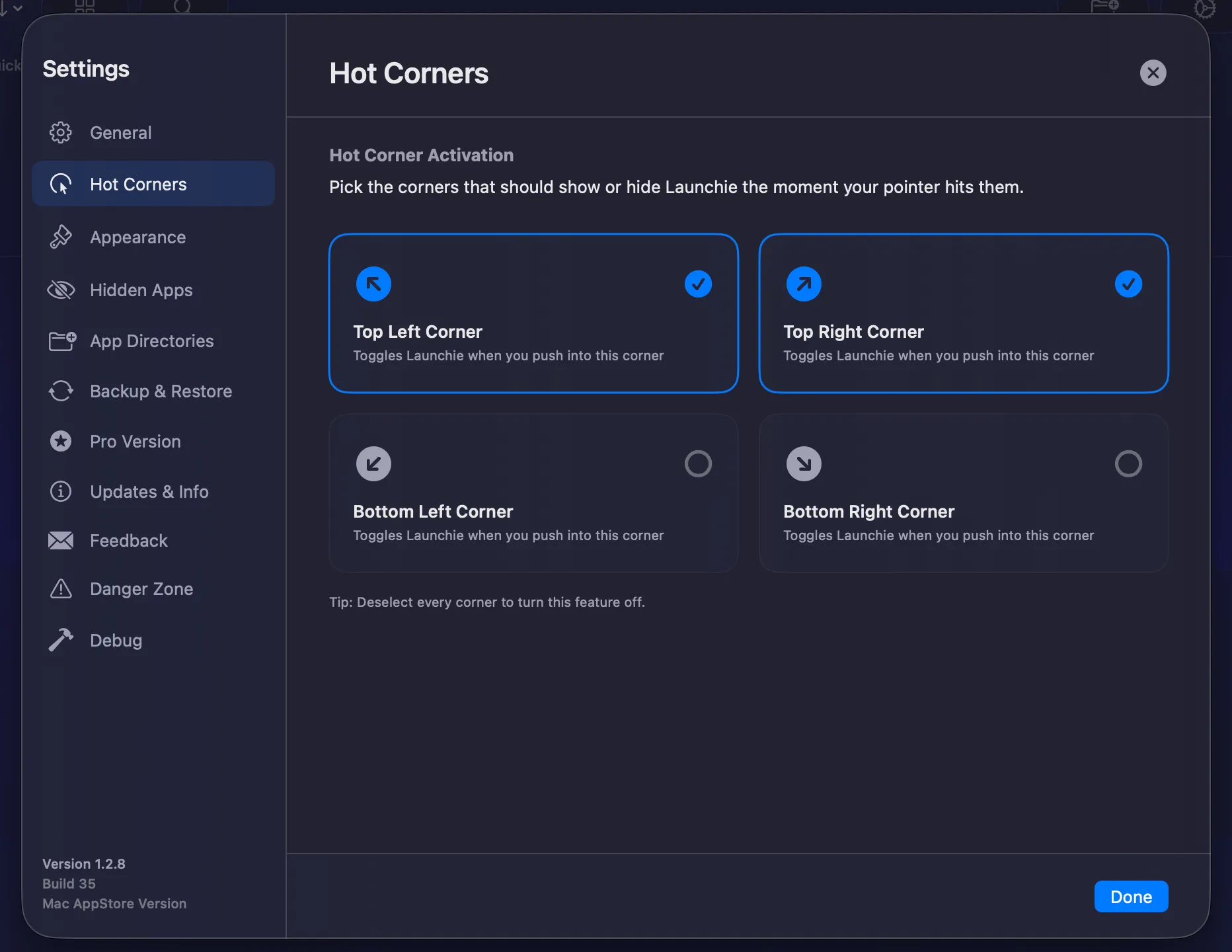
Enable Hot Corners
- Open Launchie → press ⌘ + , or click Settings.
- Go to Activation → Hot Corners.
- Pick one or more corners (Top Left, Top Right, Bottom Left, Bottom Right).
- Optional: set a delay if you frequently bump the edge accidentally.
Everyday usage
- Move the cursor into an enabled corner and pause for the delay (if any).
- Launchie appears on the current monitor, ready for search or drag-and-drop.
Troubleshooting
- macOS Mission Control appears instead: disable that corner in macOS System Settings → Desktop & Dock → Hot Corners, or assign the Launchie corner to a different edge.
Footnotes
-
Hot Corner support was introduced in Launchie 1.2.3 (see
changelog.md). ↩