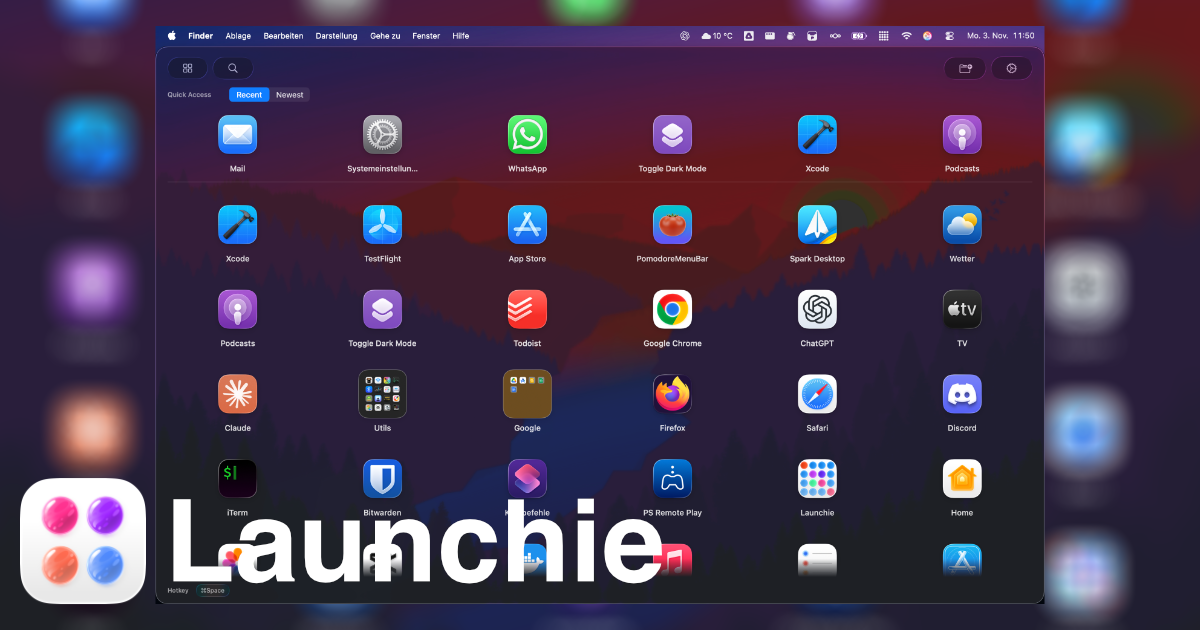
Short answer: Your Launchpad layout is very likely still on your Mac. Apple removed Launchpad in macOS 26 Tahoe, but the small database where it kept your folders and app order usually survives the upgrade, including the one to macOS 27 Golden Gate. Launchie can read that database and rebuild the same folders and order in a Launchpad-style grid. It takes a few clicks and is free.
If you spent years sorting apps into folders like Utilities, Creative or Games, you don’t have to do it again.
Why Your Layout Is Still There
Launchpad never kept your arrangement in iCloud or in a setting you could export. It kept it in a local database file inside your user’s system folder. When macOS 26 replaced Launchpad with the Apps view, it stopped using that file, but it didn’t delete it.
So the file is usually still there, with every folder name and every app position from the last time you used Launchpad. Nothing in macOS can open it anymore. Launchie can.
A few cases where it may be gone:
- You set up the Mac fresh on macOS 26 or later, instead of upgrading.
- You moved to a new Mac and didn’t migrate from the old one.
- You never arranged anything in Launchpad, so it only held Apple’s default order.
In those cases there’s nothing to import, and Launchie won’t offer it.
How to Import Your Launchpad Layout
When you first open Launchie
- Download Launchie from the Mac App Store or as a direct download.
- Open it. If Launchie finds a Launchpad layout on your Mac, the Getting Started guide shows a card that asks Coming from Launchpad? (or Coming from another launcher? if it finds more than one)
- Click Import from Launchpad.
- If Launchie needs your permission to read the layout, a window opens that already points to the right folder. Just click Import. You don’t need to find anything yourself.
- Launchie shows how many apps and folders it found. Click Import to confirm.
Any time later
- Open Launchie and press ⌘, to open Settings.
- Go to Backup.
- Next to Import from Launchpad, click Import…
- Confirm the folder if asked, then confirm the import.
That’s it. Your folders appear with their old names and contents, in the order you had them.
What Gets Imported
- Folders, with their names and the apps inside them, in their original order.
- The order of your apps and folders, across all of Launchpad’s pages.
- Apps you’ve deleted since are skipped, and Launchie tells you how many.
- Apps you installed after you last used Launchpad are placed after the imported layout, so nothing goes missing.
Launchpad split your apps into swipeable pages. Launchie shows one scrolling grid, so your pages are joined into one continuous sequence: page 1 first, then page 2, and so on.
After the import, Launchie switches to its Custom arrangement so your imported order is what you see. You can still drag apps and folders around afterwards, like in Launchpad.
Things to Know Before You Import
- It replaces your current Launchie layout. If you’ve already arranged folders in Launchie, the import replaces them with the Launchpad layout. Import first, then fine-tune.
- Nothing is changed on the Launchpad side. Launchie reads a copy of the database and never writes to the original, so you can import again later if you want to start over.
- It’s free. Importing works in the free version, no Pro needed.
Coming From Another Launcher?
Launchie can also import from the two most popular Launchpad replacements:
New to the whole topic? Read where Launchpad went on macOS 26 and 27 and why Apple removed it.
 Launchie