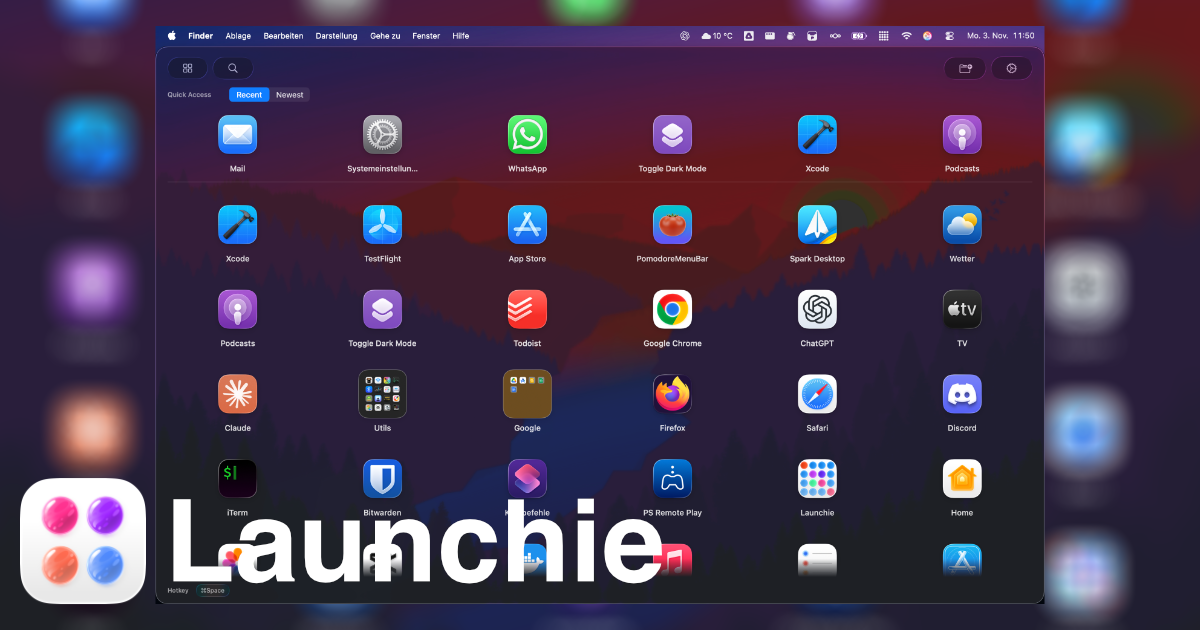
Short answer: Launchie can import your LaunchOS layout, with all folders and your app order. Open Launchie, go to Settings → Backup, and click Import… next to Import from LaunchOS. It’s free and takes about a minute.
The hardest part of trying a new launcher is the hour you spent arranging the old one. With the import, you keep that work and can compare the two apps with your own layout.
Why People Switch From LaunchOS
LaunchOS is one of the best-known Launchpad replacements. People who try Launchie usually mention its look, which follows macOS, the Mac App Store version that you can share with your family, and Spaces for grouping apps by task. Our Launchie vs. LaunchOS comparison goes through the differences in detail.
How to Import Your LaunchOS Layout
When you first open Launchie
- Download Launchie from the Mac App Store, as a direct download, or with Homebrew.
- Open it. If LaunchOS is set up on this Mac, the Getting Started guide asks Coming from LaunchOS? (or Coming from another launcher? if it finds more than one)
- Click Import from LaunchOS.
- If Launchie needs your permission to read the layout, a window opens that already shows LaunchOS’s folder. Click Import.
- Launchie shows how many apps and folders it found. Click Import to confirm.
Any time later
- Open Launchie and press ⌘, to open Settings.
- Go to Backup.
- Next to Import from LaunchOS, click Import…
- Confirm the folder if asked, then confirm the import.
What Gets Imported
- Folders, with their names and the apps inside them, in order.
- The order of your apps and folders. LaunchOS arranges apps on pages; Launchie shows one scrolling grid, so the pages are joined in order.
- Apps that are no longer installed are skipped, and Launchie tells you how many.
- Apps that weren’t in your LaunchOS layout are placed after the imported ones.
After the import, Launchie switches to its Custom arrangement so your imported order is what you see. From there you can rearrange by drag and drop, or sort apps into Spaces.
Things to Know Before You Import
- It replaces your current Launchie layout. Import first, then fine-tune in Launchie.
- LaunchOS stays untouched. Launchie reads a copy of LaunchOS’s data and never writes to it. You can run both side by side while you decide.
- It’s free. The import works in Launchie’s free version.
More Ways to Switch
 Launchie