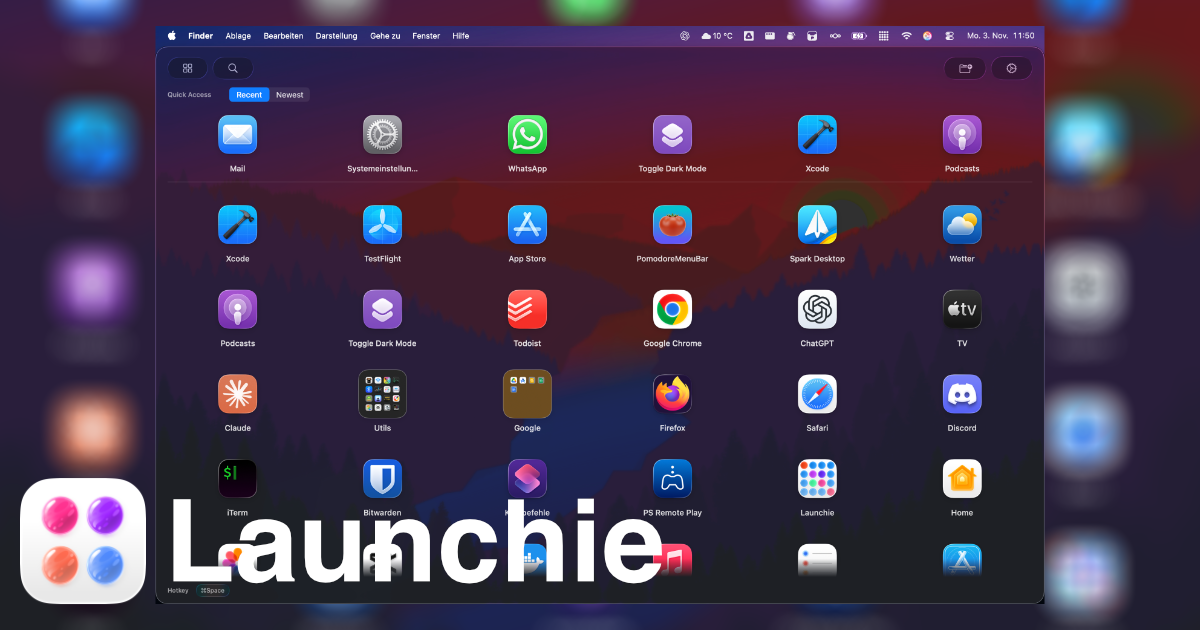
LaunchPanel appeals to people who want a bare-bones launcher that they can keep perfectly tidy by hand. Drag an app into the panel, resize the window, and you’re done. But once your Applications folder grows past a few dozen entries, the manual approach becomes a bottleneck. Launchie automates the tedious parts while keeping the interface tidy and familiar.
Population and Maintenance
- LaunchPanel: You must drag every single app into the panel yourself. Install a new tool later? Drag it in. Want to keep two Macs aligned? Repeat the drag-and-drop routine on both. Import/export isn’t part of the feature set.
- Launchie: Automatically indexes your Applications folder (and more) on first launch. Newly installed apps appear instantly, and hiding ones you never use is a context-menu action away.
For Mac users who install or test software frequently, Launchie’s automation alone can save hours every month.
Scaling Up
LaunchPanel can technically display hundreds of icons, but the import process is painfully slow and adds noticeable lag before the panel opens. There’s also no full-screen option, so you end up scrolling a cramped window that doesn’t remember your preferred arrangement.
Launchie thrives with large libraries:
- Vertically scrolling list and grid layouts display far more apps per view.
- Folder support keeps categories focused instead of endless grids.
- Performance remains steady even with ~750 apps indexed, as documented in Mac & i’s benchmark.
The difference is night and day when you’re juggling professional suites, creative tools, and utilities simultaneously.
Customization and Shortcuts
LaunchPanel locks you into a single look—fixed colors, fixed icon sizes, and no full-screen mode. You can show or hide the dock/menu bar entry, but that’s about it.
Launchie layers usability improvements on top of visual tweaks:
- Choose between Sheet or Glass themes with adjustable transparency.
- Resize icons and text independently.
- Toggle a quick-access ribbon that shows recent, frequent, or newly installed apps.
- Trigger the launcher via hot corners (Pro), keyboard shortcuts, dock, or menu bar.
These options make Launchie feel native regardless of whether you prefer a minimal list or a full glass dashboard.
Safety Nets
LaunchPanel offers no layout backup or sync. If you reinstall macOS or move to a new Mac, you start from scratch.
Launchie Pro ships with built-in backup and restore for layouts, so your carefully curated folders and custom order survive OS upgrades and hardware swaps.
Pricing
| Feature |
LaunchPanel |
Launchie |
| Base price |
Free |
Free |
| Auto app discovery |
Manual only |
Included |
| Folders |
– |
Included (multiple with Pro) |
| Hot corners |
– |
Pro |
| Layout backup |
– |
Pro |
| Quick-access row |
– |
Included |
Even though both apps offer free versions, Launchie’s default feature set eclipses LaunchPanel before you ever consider the €18 Pro upgrade.
Conclusion: Launchie Saves Time Every Day
LaunchPanel is fine if you only need quick access to five or six static apps. The moment your workflow evolves, manual population turns into busywork and opening the panel takes longer than Spotlight. Launchie flips the script by automating population, providing better organization tools, and staying responsive under heavy loads. That’s why reviewers—and our own users—prefer Launchie as the long-term Launchpad replacement.
Stop dragging the same icons around. Download Launchie and let your launcher keep up with you.
 Launchie